Cost and credit guide
How Blinkvid Video Credits Work
The price of a video depends on the settings you choose. Blinkvid shows the credit cost before you generate, so you can change the setup or stop before anything is spent.
Published October 14, 2026
The short answer
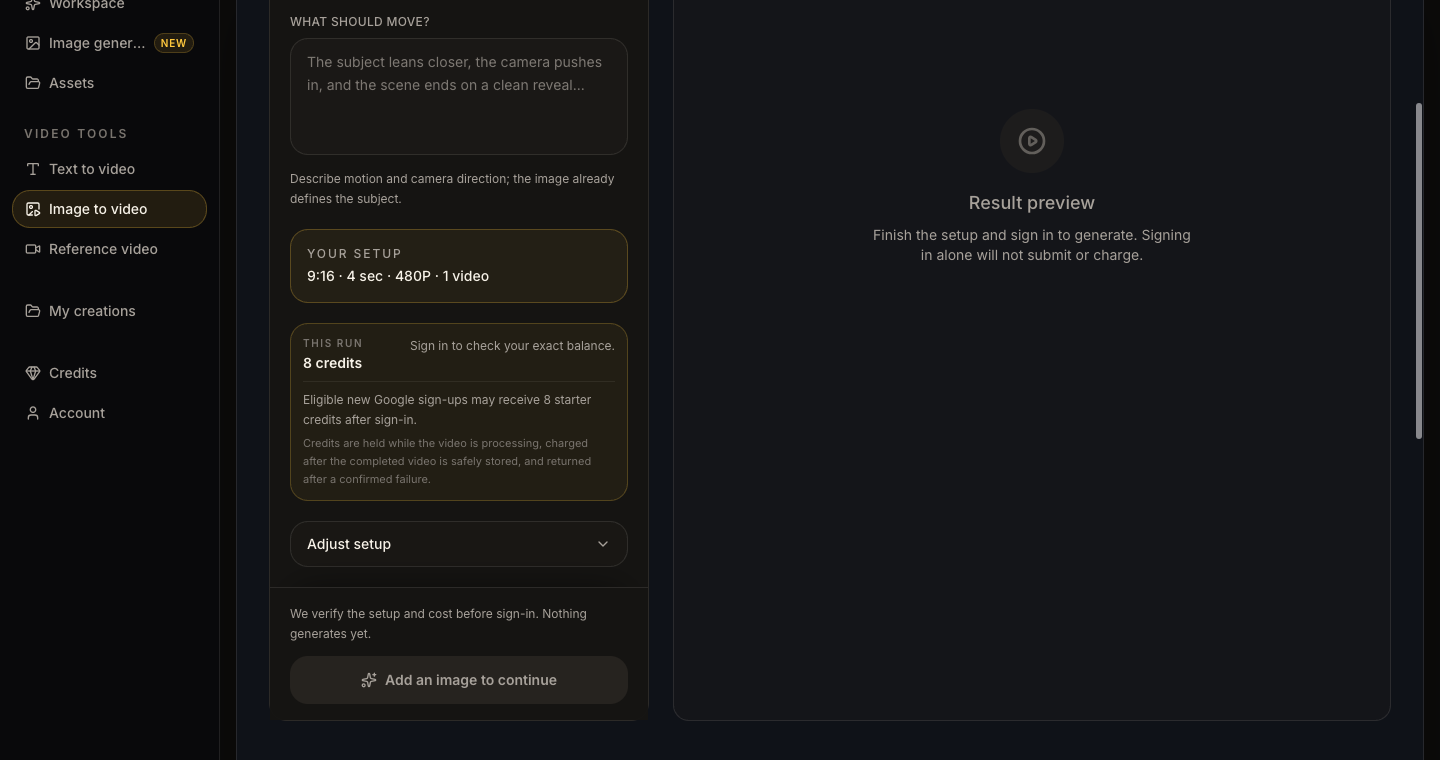
Each generation uses credits. Duration, resolution, sound, model, and output count can change the amount, and the price appears beside the settings before you start.
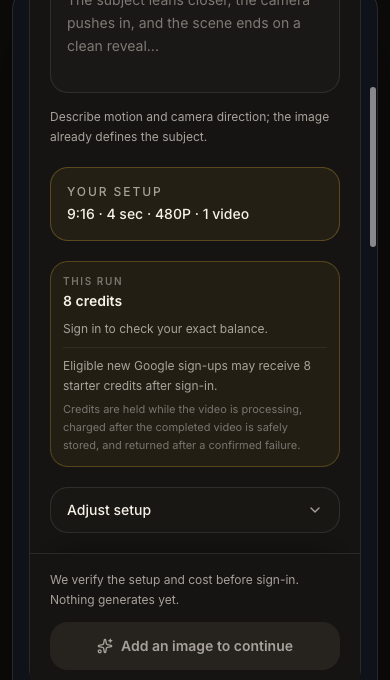
While the video is processing, those credits are reserved. They are charged after the finished video is saved and returned after a failure is confirmed. If the status is still unclear, wait instead of starting the same video again.
Why there is no single price for every AI video
A short standard-resolution image animation does not cost the same as a longer, higher-resolution video with audio or several inputs.
Use the price shown next to the Generate button. A number from an older article or screenshot may describe a different setup.
Check the price
Four things to check before you generate
1. Your setup
Check the aspect ratio, duration, resolution, and output count for the video you want.
2. Current price
This is the credit cost for the settings on screen. Change a priced option and the amount may change too.
3. Your balance
After signing in, compare the price with the credits you have available. Signing in does not start the video.
4. Video status
Once generation starts, check that video's status and wait for the result before submitting it again.
After you press Generate
When credits are reserved, charged, or returned
- Before generation: you see the price for the settings you selected.
- While processing: that amount is reserved from your available balance.
- When the video finishes: the reserved credits are charged after the file is saved.
- A finished video uses credits even if you decide not to post it. Review the result before paying for another version.
- After a failure is confirmed: the reserved credits are returned.
- If the status is unclear: wait for it to update before trying the same video again.
What the eight-credit starter covers
Eligible new Google registrations receive 8 welcome credits. Email-only registrations, registrations from India, accounts without an available country check, and accounts that do not pass the anti-abuse check are not eligible. Your account shows eligibility after sign-in.
The homepage's low-cost starter currently costs exactly 8 credits: one four-second, 9:16 video at 480P. Other workspaces, models, durations, resolutions, and options can cost differently, including the focused trend tools.
Welcome and purchased credits go into the same balance. You can use them with any supported setup as long as the available balance covers its price.
How to avoid a surprise before you generate
- Check the full setup instead of looking only at the model name.
- After changing the duration, resolution, output count, sound, or model, look at the price again.
- If the first video is still processing, wait before sending the same request again.
- Review the finished result before paying for another version.
Spend for the result you need
The cheapest option is not always enough, and the highest resolution is not always worth the extra credits. Choose the settings that fit where the clip will be used.
Watch the finished video before making another version. If it is close, changing one setting is usually more useful than replacing the whole setup.
Check credit prices before your next video.
The pricing page shows how to get credits. The generator shows how many the video in front of you will use.
 Blinkvid