Make the frame first. Ship the video faster.
Start with the strongest product image, refine it, then animate it into a short ad without rewriting prompts or chasing files.
Create or choose a still
Animate the selected image
Pick the fastest way to get a usable first frame
Create a new image, improve an existing one, or animate a finished still into a video ad.
Write the shot, keep the direction
Turn a product idea into a first frame brief you can carry straight into video.
10 free credits to start • No credit card required
Make the image, choose the frame, generate the videoOne creative direction carries through the whole flow
Blinkvid keeps the image, prompt, and video connected so every iteration has a clear next step.
Create or upload the starting image
Start from text, a product shot, or a saved frame from your library.
Choose the frame worth animating
Keep the image that best matches the product, campaign, or composition you need.
Generate the video from that image
Send the selected image into image-to-video with the prompt and source relationship preserved.
Start from the asset you already haveThen move it toward a publishable video
Use text when you only have an idea, use an image when the product is fixed, and use image-to-video when the frame is ready to move.
Start from the asset you already have
Use text when you only have an idea, use an image when the product is fixed, and use image-to-video when the frame is ready to move.
Reuse winning assets
Keep source images and finished clips together so the next campaign starts faster.
Create from your phone
Upload, prompt, and start a generation without hunting for the right tool.
Iterate without starting over
Keep the prompt and selected image close so each revision builds on the last.
Use your free credits on the workflow most likely to produce a usable first result.
Create the first frame from text
Best first stepUse a short brief to define the product, style, and campaign angle before making video.
What you control
Prompt, ratio, product angle, visual style, and candidate frames.
Improve the image before animation
Use a source image when the product identity matters and the frame needs a cleaner campaign look.
What you control
Reference image, variation goal, cleanup direction, and reusable stills.
Animate the approved frame
Turn product images, posters, or generated stills into clips for ads, landing pages, and social.
What you control
Upload or reuse an image, add motion direction, then generate a short video.
One strong frame can become a finished adKeep the source image, prompt, and video together
Use Blinkvid when you need product motion, landing-page clips, or social ads without rebuilding the creative direction each time.
 Starting frame
Marketing
Write one line and get the first ad cut
Use this when you need a fast test for a campaign, social post, or product launch.
Reusable brief
Premium skincare bottle on a reflective pedestal, soft lavender lighting, slow dolly-in camera move, condensation detail, clean commercial framing, cinematic product video.
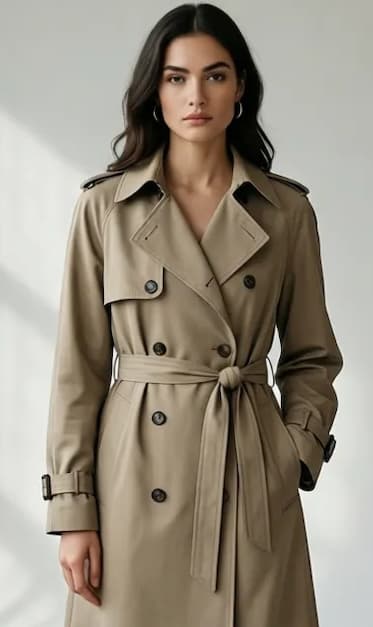 Starting frame
Ecommerce
Turn a product image into a motion asset
Use this when the image is approved but the page or ad needs more attention.
Reusable brief
Animate a fashion portrait from a single editorial still. Keep the face and wardrobe intact, add subtle wind movement, gentle camera push, and realistic depth in the background lights.
Reference to video
Use the reference scene to preserve framing and mood, then create a slow-moving cinematic reveal with natural light gradients, restrained motion, and premium brand-film pacing.
Product / Brand
Use references when brand style must stay fixed
Use this when the result must match a product line, campaign look, or client direction.
Reusable brief
Use the reference scene to preserve framing and mood, then create a slow-moving cinematic reveal with natural light gradients, restrained motion, and premium brand-film pacing.
Have a product image? Turn it into a video now.
Animate an imagePricing
Buy enough credits to reach a publishable result
Starter Pack
About 26 Veo 3.1 base runs
About 13 Seedance 1.5 Pro 5s runs
About 13 HappyHorse 4s runs
HD video generation
Fast generation speed
No watermark
Commercial use license
Standard Pack
About 90 Veo 3.1 base runs
About 45 Seedance 1.5 Pro 5s runs
About 45 HappyHorse 4s runs
HD video generation
Fast generation speed
No watermark
Commercial use license
Pro Plan
About 270 Veo 3.1 base runs
About 135 Seedance 1.5 Pro 5s runs
About 135 HappyHorse 4s runs
HD video generation
Fast generation speed
No watermark
Commercial use license
Create one usable clip before you buy more creditsTest the image-to-video workflow with your own prompt or product image
Sign in, choose a workflow, and generate a downloadable result in minutes.
- 10 free credits to start
- No credit card required
- Buy credits only when you need more runs
- Support by email
Ready in 2-5 minutes
Frequently Asked Questions
Everything you need to know about Blinkvid
Still have questions? Contact us atsupport@blinkvid.net
 Blinkvid